
Create your own Custom Visuals with Claude
Hi everyone.
Recently I have started playing around with Claude to create new Custom Visuals on Pyramid.
I found it to be an enjoyment to create my “wish I had this visual in Pyramid…” and so easy to achieve, so I wanted to share my experience with our community 
Custom Visuals allow us to create new type of visual, based on Java script, and bring it into a Pyramid Discover and Present.
For those who are unfamiliar with Custom Visuals I’ll refer you to our help page on the following link - .
Until recently, only people with Java know-how could manage to create new visuals (and it was not an easy chore for them either…), leaving the rest of us behind
Today, with the advancement of LLM tools, specifically Claude, anyone can create new Custom Visuals on Pyramid.
In the attached video clips, you can see several such visuals that I have created using Claude.
So, let me share with you how to create a new Custom Visual with Claude:
1. Find or create an image/s of the new visual you want to create.
2. Chat with Claude
Open a Chat session with Claude on the web and do the following:
a. Add the relevant images to the chat.
b. Recommended: add a Discover image with sample data that Claude can refer to in the Drop Zones names.
c. Help Claude learn about Pyramid’s Custom Visual creation through API V.2:
i. Add link to the Custom Visual help:
iii. Recommended: add an existing Custom Visual script to the chat and refer Claude to follow it as a guideline for proper creation of a visual script ( I am attaching such a script for Organization tree).
d. Write your request, something along the lines of:
I am looking to create a new Custom Visual in Pyramid Analytics. In the attached "### Sample" image I uploaded a sample report showing retail store product Hierarchy and sales as is displayed on Pyramid Analytics' Discover. I need to create a Java script for #### Custom Visualization as is shown in the attached "#### Visual" image.
Information about the Pyramid's API can be found on this address -https://help.pyramidanalytics.com….
3. Let Claude run and create the script. Copy the script when it’s done.
4. On Pyramid – Create a new Custom Visual
a. Open a new Custom Visual from the Formulation app and continue with the following mandatory steps:
b. First, select a model to be linked with the visual. Select the model that you will be using this visual with.
c. On the “Script” tab, copy the script from Claude.
d. In the “Metadata” tab, type a name for the visual and upload an icon for it (this is a must).
I recommend finding SVG icons on a web site such as this one:
e. In the “Drop Zones” tab you can select which of them will appear on the Discover with the new visual. This is not mandatory to change.
Make sure to keep those that the Claude script is referring to.
f. Apply the changes and save the custom visual.
5. Open a new Discover in Pyramid:
a. Starting with a regular Matrix Grid, add the attributes and measures you wish to use.
b. Right-click on Custom Visuals graphic menu and select your new visual.

c. Verify its functionality, and if need amendment, go back to the Chat and ask for it. Attach an image of the Discover if you need Claude to fix an issue seen on the display.
d. Keep scripts backup: between chat iteration, Claude might “break” the code. It does not keep backup copies of the code but rather tries to fix through “reverse engineering" his code. It can be time saving to provide him with a previous version of the script saying “this is the version where things worked before they broke…”.
e. NOTE regarding visuals’ appearance: the Custom Visual is not controlled through the Formatting Panel of the Discover. It only interacts with the Drop Zones.
See point 7 hereafter about managing the visual’s appearance.
6. Continue your iterations with Claude until the visual works as you desire.
7. Final touches:
After the visual works as expected, you should do the following to ease the control over its functionality:
a. Ask Claude to add a Configuration section at the top of the script where the user can control appearance (fonts, colors, etc.) or behavior (like scroll speed)
b. If needed, add physical controls to the display itself for the user to interact with, such as: Zoom In/Out, Increase/Decrease text size, Expand/Collapse all, etc.
I hope you will find this post useful and enjoy playing with Claude
We encourage you to share your creations in our forum for all to benefit from.
2 replies
-
Adding an organized document explaining the steps towards a new Custom Visual with Claude.
Use your imagination

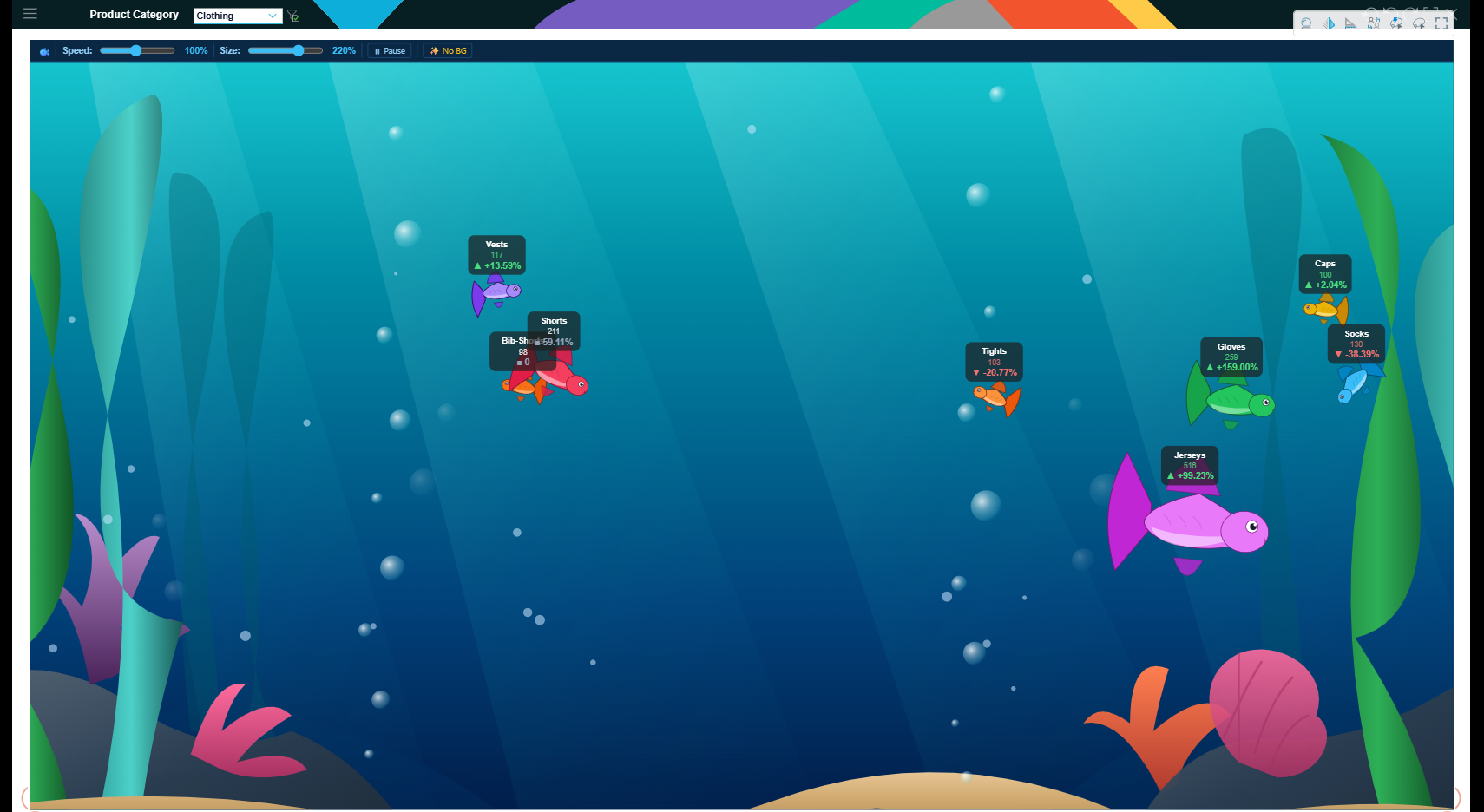
-
- instead of raising a Feature Request this might be a quicker and more promising solution for your combined chart (https://community.pyramidanalytics.com/t/m1yp47b/only-primary-y-axis-shall-be-colored)...
And of course: THANKS, , great stuff!!!
Content aside
- 8 Likes
- 2 mths agoLast active
- 2Replies
- 1673Views
- 5 Following