
Extracting a JSON Array in Data Flow
Our source tables may sometimes contain columns containing JSON arrays.
in such cases we would want to expand the array and then break the JSON into a number of different columns.
Imagine the following data containing orders with a JSON array for the order lines:
Customer |
Order ID |
Supplier |
Date |
Items |
Acme Corp |
ORD-1001 |
Global Supplies Inc |
05/01/2026 |
[{"item_name": "Widget A", "quantity": 10, "price": 5.5, "total_amount": 55.0}, {"item_name": "Widget B", "quantity": 5, "price": 12.0, "total_amount": 60.0}] |
Beta Industries |
ORD-1002 |
Northwind Traders |
12/01/2026 |
[{"item_name": "Steel Bracket", "quantity": 20, "price": 3.25, "total_amount": 65.0}] |
Cascade LLC |
ORD-1003 |
Pinnacle Distribution |
03/02/2026 |
[{"item_name": "Cable Tie Pack", "quantity": 15, "price": 2.0, "total_amount": 30.0}, {"item_name": "Rubber Gasket", "quantity": 8, "price": 4.75, "total_amount": 38.0}, {"item_name": "Mounting Plate", "quantity": 3, "price": 15.0, "total_amount": 45.0}] |
Delta Manufacturing |
ORD-1004 |
Summit Parts Co |
18/02/2026 |
[{"item_name": "Hex Bolt M8", "quantity": 100, "price": 0.35, "total_amount": 35.0}] |
Echo Retail Group |
ORD-1005 |
Riverside Wholesale |
01/03/2026 |
[{"item_name": "LED Strip 5m", "quantity": 12, "price": 9.99, "total_amount": 119.88}, {"item_name": "Power Adapter", "quantity": 12, "price": 6.5, "total_amount": 78.0}] |
As you can see – the items column is consisted of a JSON array, where each JSON contains item name, quantity, price and total amount.
Now in the Data Flow we want to expand the array to the number of rows inside it and then break the JSON into four different columns.
To do that we will use the JSON extract component in the data flow.
the JSON extract component knows how to analyze arrays and JSON strings and extract the values in different ways.
Handling our use case will use a two steps extraction:
Step 1: expanding the array
To expand the array, we will set the JSON Extract component manually the following way:
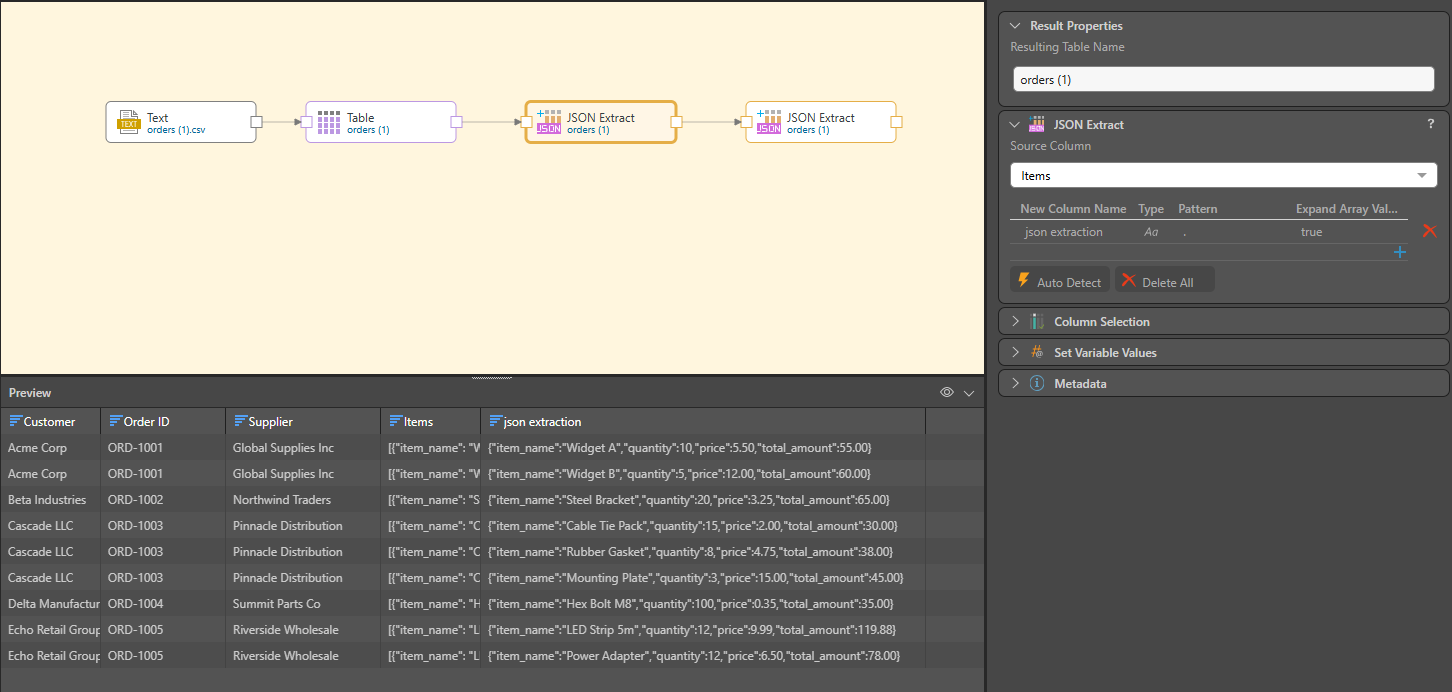
- Select the Items Column
- Add a column
- Name it json extract (or any other name)
- Set the type to text
- In the pattern choose “.” which means starting from the root.
As you can see – now each row has been expanded to its number of items, and the JSON Extract is a JSON with 4 tags in each row.
Step 2 – turning JSON tags into columns
Now We will use the JSON Extract component to create 4 separate columns (item name, quantity, price, total amount).
This can be done manually, but it’s easier to auto detect the columns – like this:
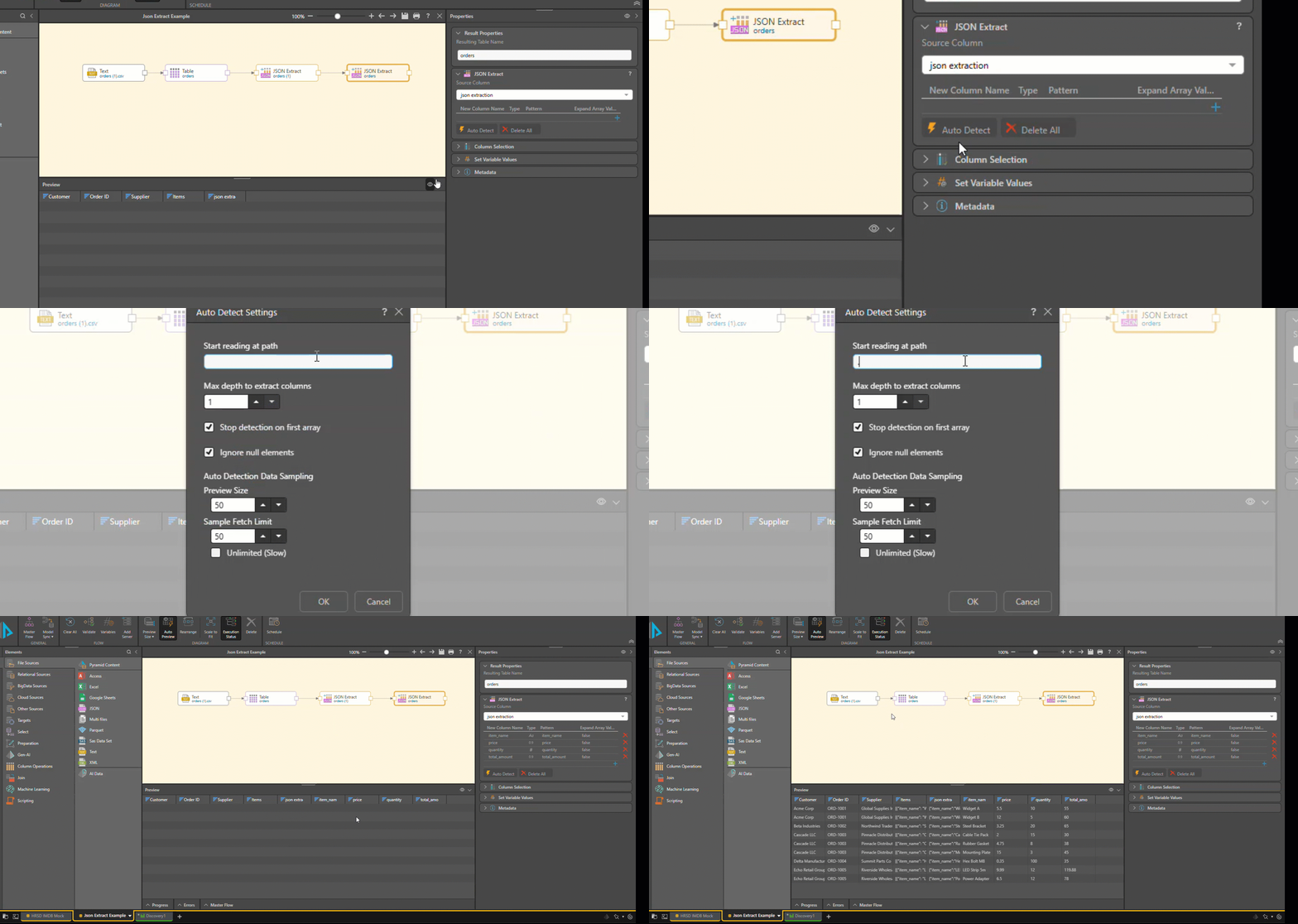
- Choose the “json extract” column
- Select auto detect
- Set “Start reading at path” to “.”
- Click ok
Now you can see the 4 added columns from each json value.
Thank you for the assistance on this example.
Reply
Content aside
- 2 Likes
- 1 mth agoLast active
- 44Views
- 1 Following